Text & Keys
Your words.
Right at the cursor.
Tap a button and your words appear wherever you’re typing: a prompt in your terminal, a reply in Mail, a snippet in your editor. Leave blanks in your text and fill them in by voice. Or skip the text and press keys: ⌘Z, ⇧⌘4, any combination, recorded right in the editor. Your clipboard comes back as soon as the text lands.
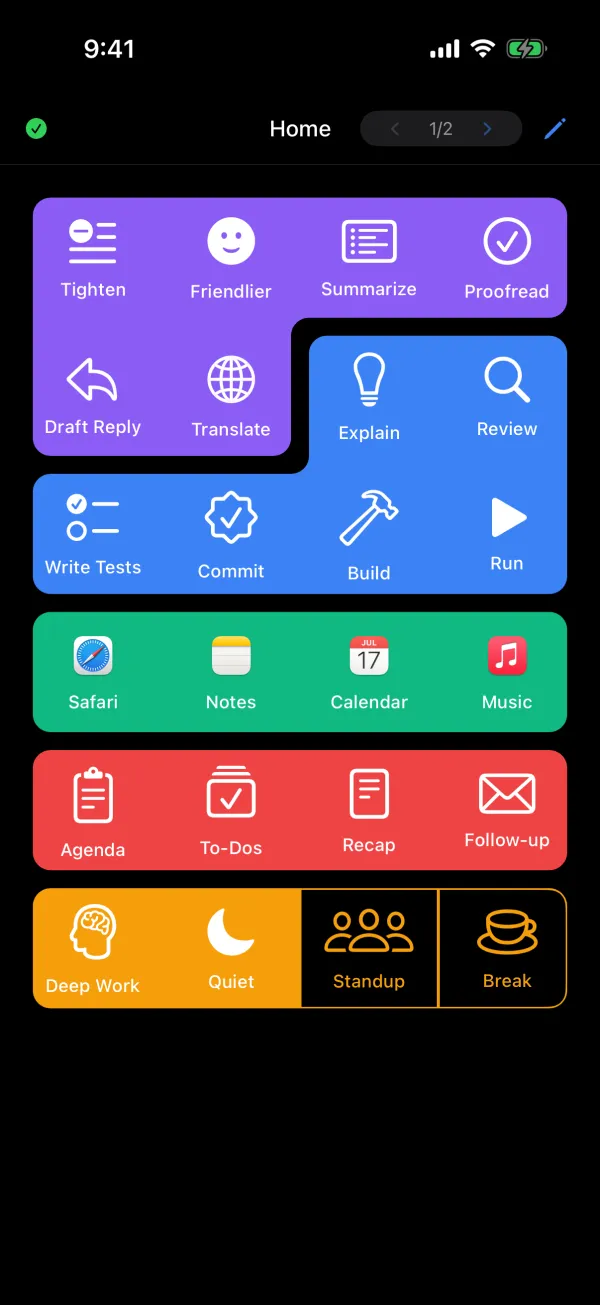
Inject
Tap. It’s typed.
A button holds a paragraph, a snippet, or a command. Tap it, and the text appears wherever you’re typing: your terminal, a reply in Mail, your editor.
- Paste or type. Paste for speed and full Unicode, or send it as typed keystrokes.
- Plain or rich. Send plain text or rich text.
- Press Return. Add a Return after the text, if you like.
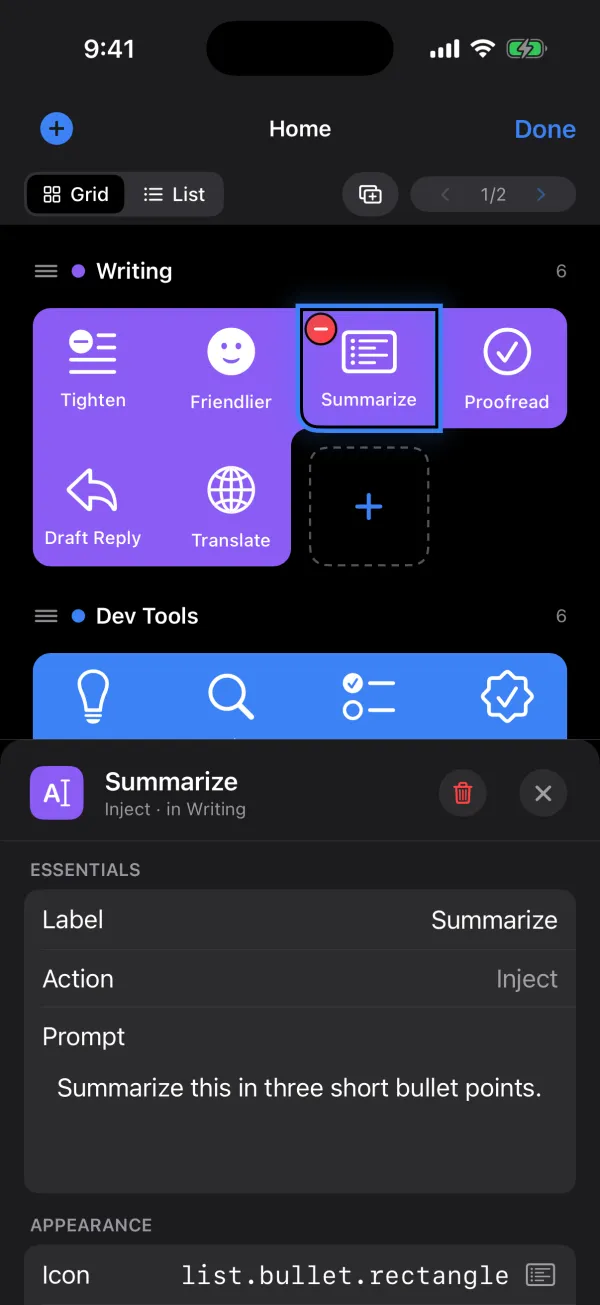
Words, blanks, and keys.
Clipboard, untouched.
In paste mode, PromptDeck puts back whatever was on your clipboard as soon as the text lands.
Fill in the blanks by voice.
Leave {{blanks}} in your text. Tap, and a preview asks for each one. Speak it or type it, then send.
Any key combination.
A Keystroke button presses ⌘Z, ⇧⌘4, or any other combination. Set it in the editor’s key recorder.
Details
- Typing
- Paste, or typed keystrokes.Paste mode restores your clipboard afterwards.
- Format
- Plain or rich text.An optional Return after the text.
- Blanks
- Placeholders in double braces.Filled in by voice or typing in a preview before sending.
- Keys
- Any combination of ⌘, ⌥, ⌃, ⇧ and a key.Recorded in the iPhone editor.
- Mac permission
- Accessibility.Lets PromptDeck for Mac type and press keys.

Build the deck your Mac deserves.
Free for Mac. iPhone beta now open.
iPhone app in beta on TestFlight. We’ll email you an invite.
Download PromptDeck for Mac