All Features

Build your deck.
Right on your iPhone.

Tap the pencil and your deck becomes editable in place. Add buttons, sections, and pages, change how they look and what they do, and watch each change land as you make it.

Start Editing

Three taps from using your deck to changing it.

01

Tap the pencil

While your iPhone is connected to your Mac, tap the pencil in the status bar. The edit bar appears with + and Done.

02

Tap +

Choose Add button, Add section, or Chrome rows… to add to the page you’re editing.

03

Tap to select

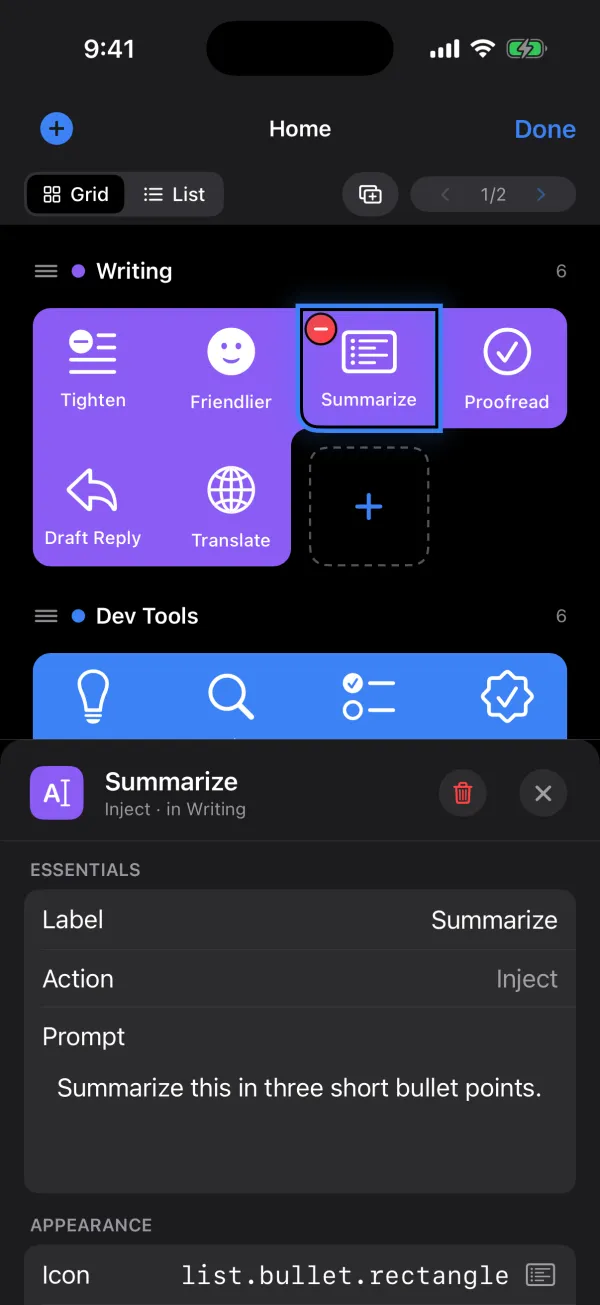
Tap a button or a section, or the page title in the edit bar, and the inspector opens with its settings. Tap Done when you’re finished.

The edit bar also holds the page’s Grid / List switch, so you can change how a page lays out its buttons without leaving edit mode.
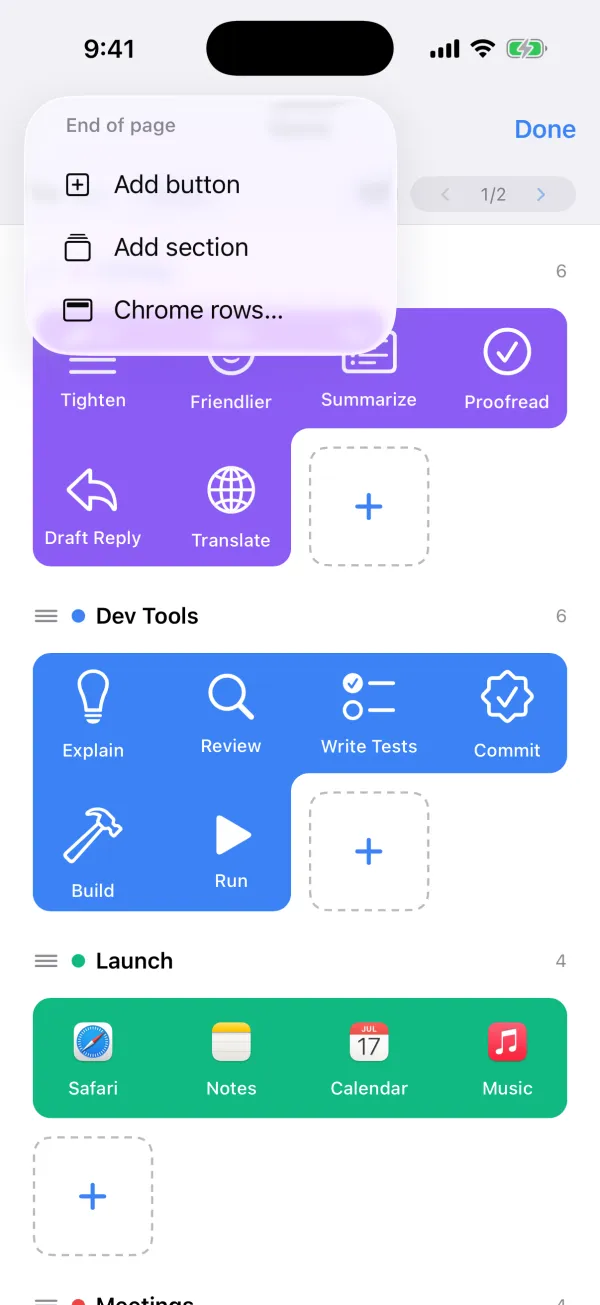
The + menu in edit mode, listing Add button, Add section and Chrome rows over a deck page

One Inspector for Everything

Buttons, sections, and pages all edit in the same docked inspector.

Look and feel

Set a button’s label, icon, color, and shape, plus the settings for what it does, such as the text it sends or the app it opens.

Lists as rows

Multi-part settings edit as rows you add to and remove from: a cycle button’s states, a chain’s steps, page and section triggers, REST request headers, and what an AI button shares from your Mac.

Show or hide

Hide a page or a section you don’t need right now, and show it again whenever you want it back.

The docked inspector open on a Summarize button, showing its label, action, prompt and appearance settings

Every Button Type, One Panel

Add button opens the New button panel. Pick what the button does from four groups, fill in its settings, and it’s on the page. The + slots inside a section and after a button open the same panel right where you want the new button.

Text

  • Inject
  • Keystroke
  • AI
  • Dictation
  • Transcribe

Apps and Mac

  • Launch App
  • Switch Tab
  • System Action
  • Run Shortcut
  • REST API

Toggles and counters

  • Toggle
  • Toggle Checked
  • Counter
  • Cycle

Other

  • Chain
  • Scan Barcode
  • Forget PIN

Organize Your Pages

Group, order, and trim your buttons without leaving the page.

Sections and the Sorted switch

Sections group related buttons. Each page and section has one Sorted switch: on keeps it in A–Z order, off keeps the order you set by hand.

Drag to reorder

Drag buttons and sections into the order you want. A section sorted A–Z keeps its automatic order and tells you why, with a one-tap switch to Manual.

Two-tap delete

The first tap on delete arms it. Tap again within 3 seconds to remove the item, or let it pass and nothing changes.

Start from an empty page

New Page adds a blank page after the one you’re editing. It says “This page is empty” until you build it up with +.

Chrome Rows

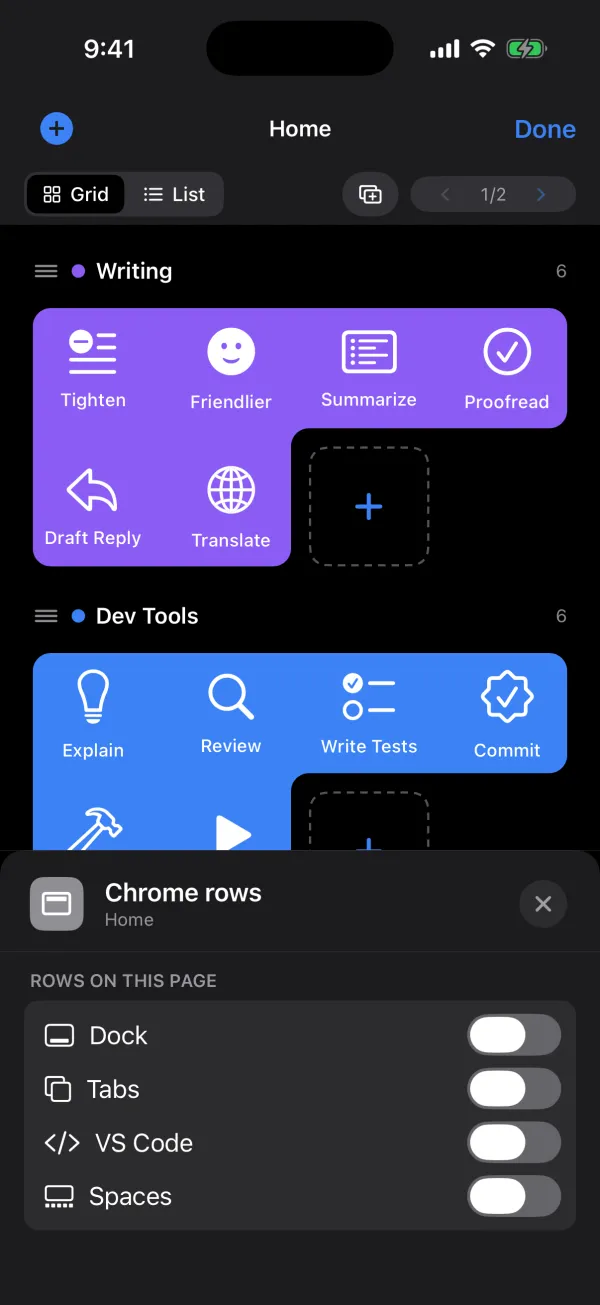
Chrome rows are the rows of your Dock apps, browser tabs, VS Code windows and Spaces that a page can show alongside its buttons. The Chrome rows panel lists them under “Rows on this page”, with a switch for each.

Dock Tabs VS Code Spaces

Open the panel from + → Chrome rows…, or tap a chrome row on the page to open it with that row’s own settings.

The Chrome rows panel listing Dock, Tabs, VS Code and Spaces, each with a switch

See Changes Live

Your deck updates while you edit, on this phone and every other one.

Instant changes

Switches, choices, and colors apply the moment you change them.

Text when you’re done

Text fields apply when you finish editing them, so a half-typed label never shows up.

Every connected phone

Your Mac saves each edit and sends it to every other phone connected to it.

Make it yours.

Download PromptDeck for Mac, connect your iPhone, and tap the pencil.

Download for Mac