
Download PromptDeck for Mac
The menu bar companion app that receives commands from your iPhone and executes them on your Mac.
Download for Mac (Apple Silicon)Installation
- Download the DMG file above
- Open the downloaded file
- Drag PromptDeck to your Applications folder
- Open PromptDeck from Applications
- Enter a PIN when prompted — you'll use this to connect from your iPhone
Connect to your Mac
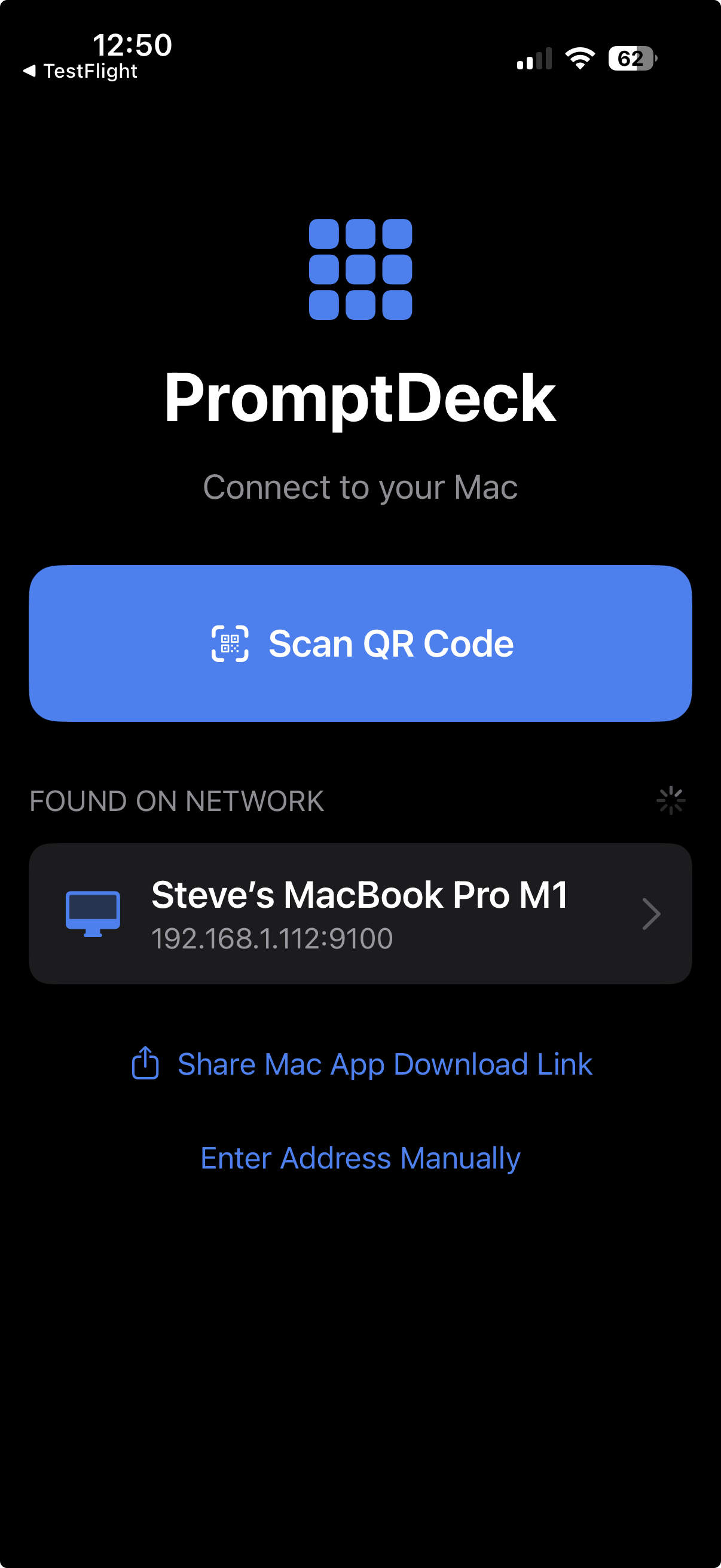
Open PromptDeck on your iPhone and it will automatically find your Mac on the network. Tap your Mac to connect, or scan the QR code shown by PromptDeck on your Mac.
- Make sure both devices are on the same Wi-Fi network
- Open PromptDeck on your iPhone — your Mac appears under "Found on Network"
- Tap your Mac, then enter the PIN displayed by PromptDeck on your Mac
- You're connected — tap any button to send text to your Mac
System Requirements
macOS 15.5 or later
Apple Silicon (M1, M2, M3, M4) Mac
Apple Silicon (M1, M2, M3, M4) Mac
Accessibility Permission Required
PromptDeck for Mac needs Accessibility permission to inject text. Go to System Settings → Privacy & Security → Accessibility and enable PromptDeck.
Troubleshooting
- Can't open the app? Right-click the app, select "Open", then click "Open" again to bypass Gatekeeper.
- Text not appearing? Make sure Accessibility permission is granted in System Settings.
- iPhone not connecting? Ensure both devices are on the same WiFi network.