Context
Your deck follows
your work.
Your deck rearranges itself around what you’re doing. Pages can follow the app in front, the desktop you’re on, your terminal’s branch or folder, an external display, VPN, or which speakers are playing. Sections can appear only when they apply. On the go, pages can follow where you are, whether your iPhone is near your Mac, or which Bluetooth device it’s connected to. Swipe away whenever you like, and PromptDeck stays out of the way until something changes.
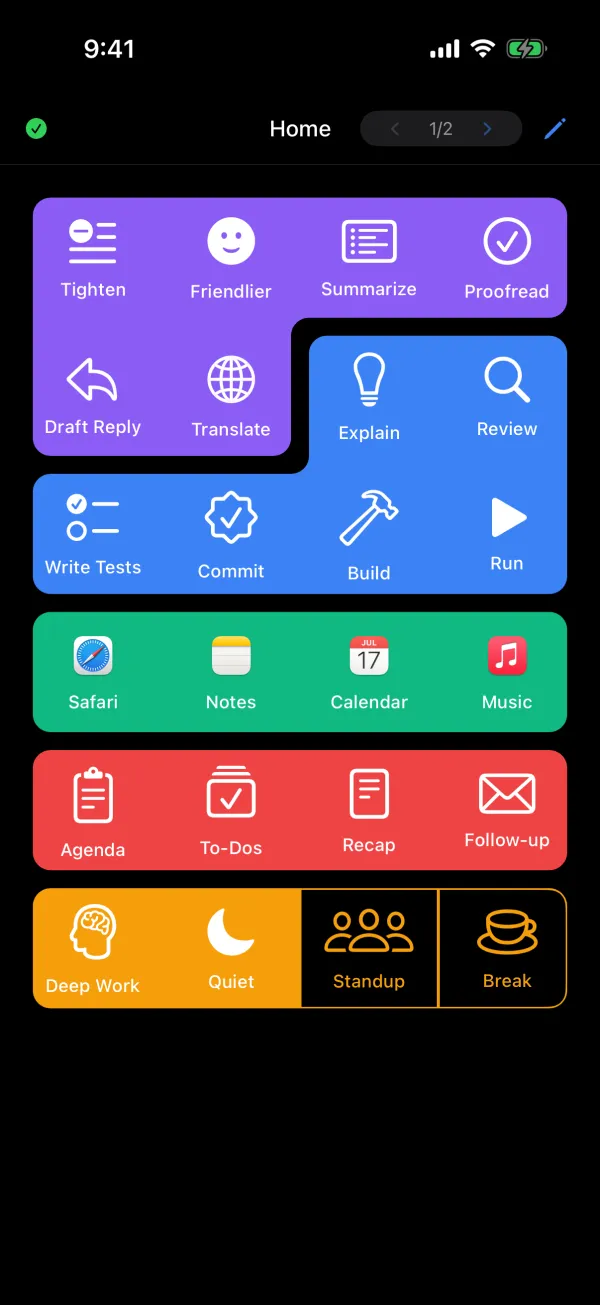
Four moments. Four pages.
Bring Xcode forward. Your dev tools are up.
Explain, Review, Write Tests, Commit, Build, Run. The page for the work in front of you, without a swipe.
Plug in the studio display. The studio is ready.
Key lights, mic, camera, and a Go Live button that runs the whole routine.
Open Mail. AI is one tap away.
Summarize, Reply, Rewrite, Translate. Or just talk, and the words land at your cursor.
Walk into the store. Your list is waiting.
Scan a barcode to add it. Scan it again to toggle its checkmark, on every phone at once.


Thirteen signals.
Ten come from your Mac, three from your iPhone. When both match, your Mac comes first.
On your Mac
- Front app. The app you’re using.
- Desktop. The desktop you’re on.
- Window title. The title of your terminal window.
- Git branch. Your terminal’s branch.
- Terminal folder. Where your terminal is.
- Terminal process. What’s running in it.
- Mac’s Wi‑Fi. The network your Mac is on.
- External display. A display plugged in.
- VPN. Whether a VPN is on.
- Audio output. Which speakers are playing.
On the go
- Near your Mac. Your Mac broadcasts a Bluetooth beacon your iPhone can sense.
- Location. A place you choose.
- Bluetooth device. Car audio, AirPods, or another device your iPhone connects to.
Present when it matters.
Sections that appear when they apply.
Show your Xcode buttons only while Xcode is in front. Each section of a page can have its own condition.
Swipe whenever you like.
Swipe to another page yourself, and PromptDeck leaves it there until something changes.
Location and Bluetooth triggers ask for permission on your iPhone the first time you use them.

Build the deck your Mac deserves.
Free for Mac. iPhone beta now open.
iPhone app in beta on TestFlight. We’ll email you an invite.
Download PromptDeck for Mac