Live Rows
Your Mac,
live on your iPhone.
Four rows that mirror your Mac as it changes. Your Dock, with running apps and real icons. Every open Safari and Chrome tab, with favicons. Every VS Code project. Every desktop, with the current one lit. Tap to switch, even across desktops, and touch and hold to pin an app or a tab as a permanent button. Turn each row on per page.


Four rows. Always current.
Each row mirrors your Mac as it changes. Tap to switch.
Dock
Your Dock with real icons, running dots, folders, Finder, and Trash.
Tabs
Every open Safari and Chrome tab, with favicons, updating as you browse.
VS Code
Every open VS Code project. Tap to bring it forward, even from another desktop.
Spaces
Your desktops, with the current one lit. Desktop 10 and up included, with your own labels.

Per page
Turn each row on where you want it.
In edit mode, open Chrome rows and switch Dock, Tabs, VS Code, or Spaces on for the page you’re on.
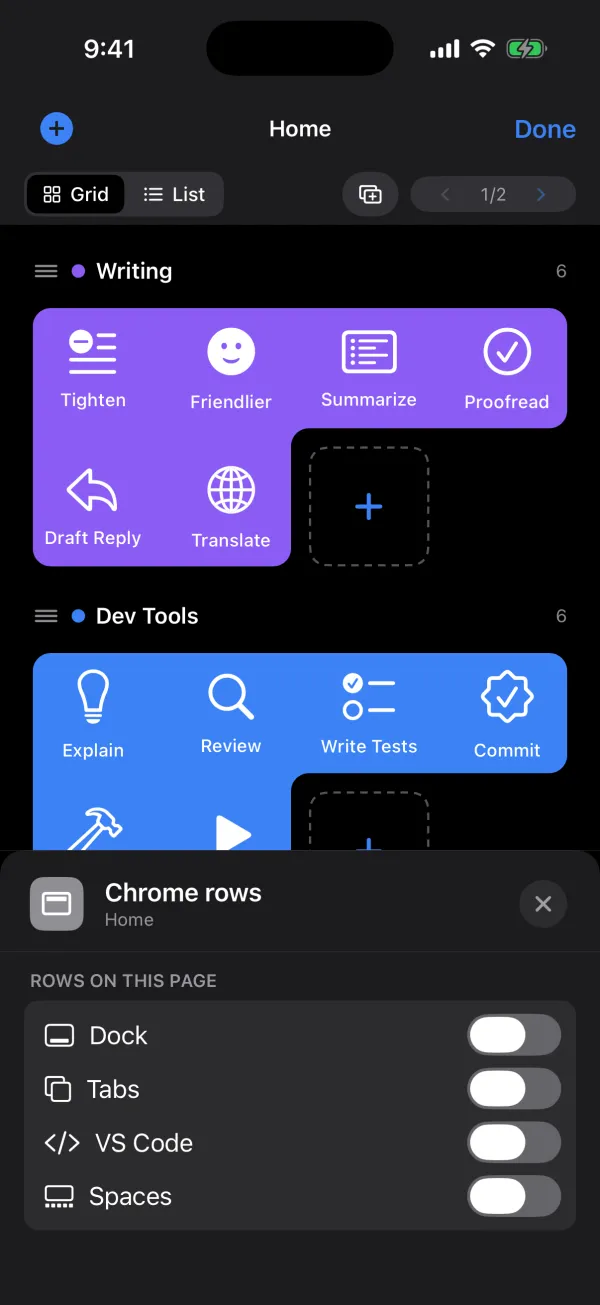
Touch and hold to pin.
Like an app or a tab enough to keep it? Touch and hold it in the Dock or Tabs row to pin it to the page as a button.
Pin an app.
Touch and hold an icon in the Dock row to add it to the page.
Pin a tab.
Touch and hold a tab to keep a button that jumps straight back to it.
Pinning works for Dock apps and browser tabs. Projects and desktops are one tap to switch. Browser tabs need Automation permission for Safari or Chrome on your Mac.

Build the deck your Mac deserves.
Free for Mac. iPhone beta now open.
iPhone app in beta on TestFlight. We’ll email you an invite.
Download PromptDeck for Mac